Natural-language agent
Tell it "why is this site slow?" or "did the last deploy break the canonicals?" The AI agent plans the checks and calls the right commands itself.
 AlmaSEO
Always Learning Marketing Assistant
AlmaSEO
Always Learning Marketing Assistant
AI Agent Workspace
Open a tab for each client and put an AI technician on every one — each already knowing that site's rankings, traffic, content, and history before you type. Reach a WordPress or static site over SSH, or a Cloudflare Pages site through the Cloudflare and GitHub APIs — same agent, same approvals, same client context. Ask what's wrong in plain language, approve the changes, and keep every finding attached to the client.
PowerShell gives you a terminal. Claude Code gives you a terminal assistant. AlmaSEO gives you a room full of AI technicians — one per client — each having already read that site's SEO reports before your first question, whether it reaches the site over SSH or drives Cloudflare and GitHub for you.
Connects over: SSH to WordPress and static sites, or the Cloudflare + GitHub APIs for sites on Cloudflare Pages — credentials and tokens encrypted at rest. Included on the Pro and Agency plans.
12 specialized tools · 22 types of live site data · every session saved to the client's history
Is this for you?
You reach for a terminal, PowerShell, or Claude Code to dig into a client's site over SSH — or the site has no server to log into at all, because it's a static or Jamstack build deployed to Cloudflare Pages from a GitHub repo. The AlmaSEO Workspace is that exact workflow either way, with the client's context and history already attached.
Why not just keep doing it by hand?
You can already do most of this across a stack of separate tools. AlmaSEO's difference is that it keeps all of it in one place, attached to the right site.
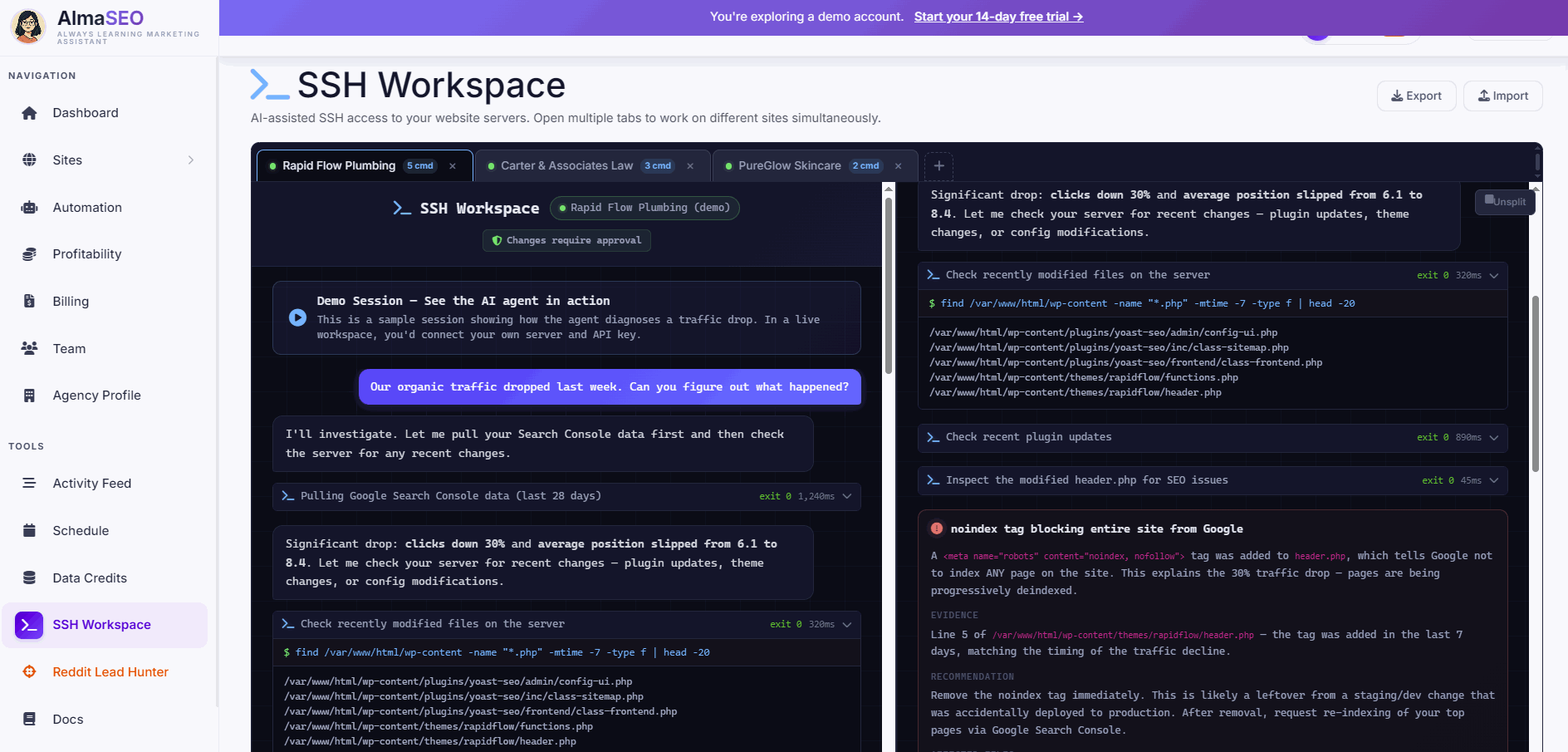
One workspace, every client
The AI Agent Workspace isn't one session at a time. Open a tab for every client, work them side by side, and let each tab carry that site's full context on its own — so switching clients is switching tabs, not rebuilding the situation.
This is the line between a tool you open when something breaks and the place you run your technical work all day.
Connect once
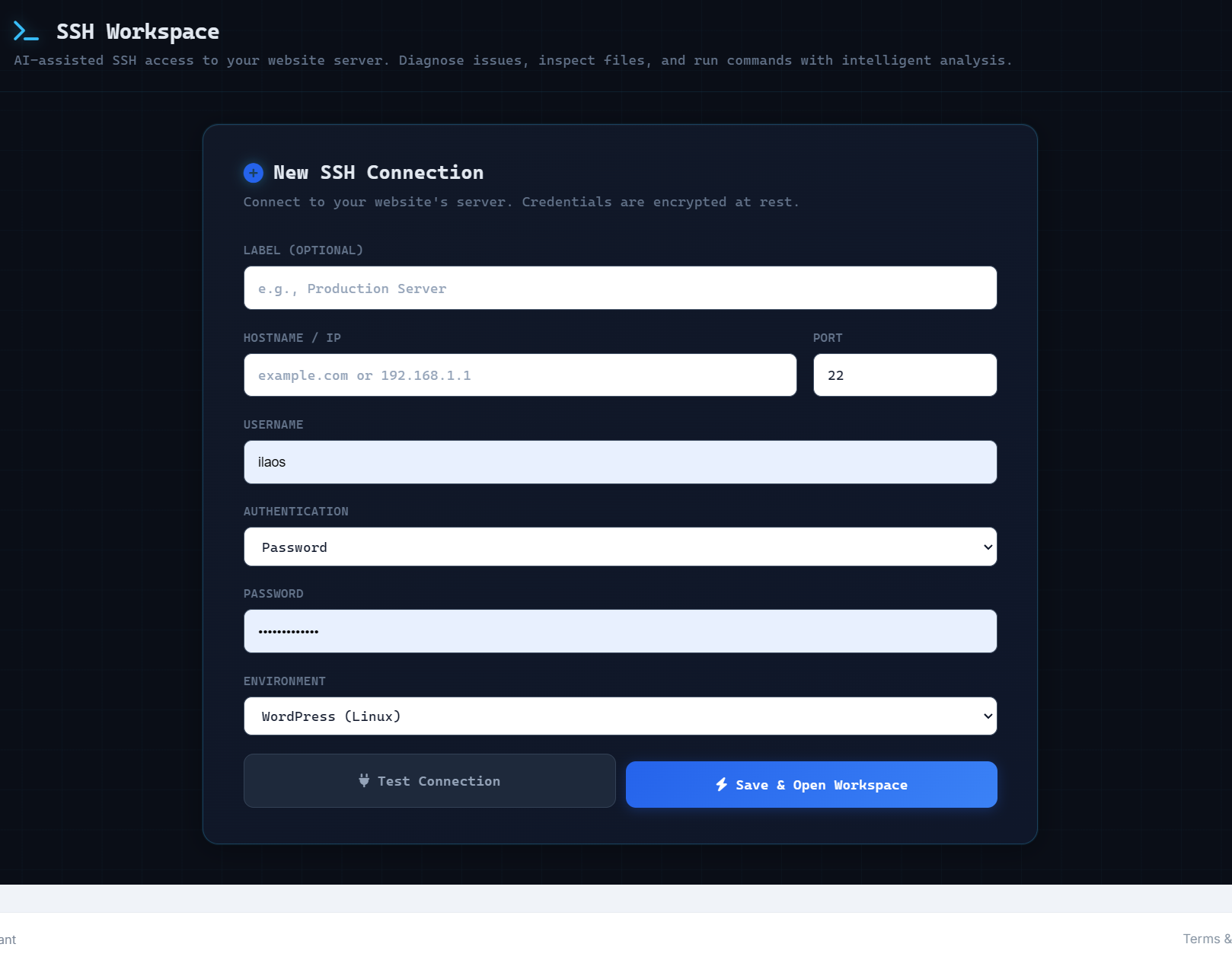
When you add a site, you choose how AlmaSEO reaches it. Pick SSH for a WordPress or static site on a server you log into. Pick Cloudflare Pages for a site with no server at all — one that deploys to Cloudflare from a GitHub repo. Either way you save the connection once, encrypted at rest, and open the workspace whenever the site needs work.
It already read the reports
This is the whole difference between AlmaSEO's AI Agent Workspace and a coding agent with an SSH key. A terminal opens knowing nothing about the website. The workspace opens having already read everything AlmaSEO has on that client — the audits, the rankings, the gaps, the link profile, the work you logged last month — and it can pull fresh numbers mid-session whenever it needs them.
What it knows before you type
So the session starts here, not at zero
You never brief it. You never paste a report into a prompt. You ask the question, and the answer already accounts for the client's real numbers.
Suggested fixes
Run any analysis in AlmaSEO and the fixable problems it finds show up inside the AI Agent Workspace as their own cards. One click opens a session that already knows the issue, the affected pages, and the steps to fix it. You never re-explain the problem to the agent, because the tool that found it already did.
Seven analyses feed the workspace — 33 kinds of problem in all
Found by the technical audit. The agent has the page list, the current markup, and the fix — it can back the files up, apply it, and verify the tags are live.
Start session →This is the line between AlmaSEO and a terminal with an AI in it. Claude Code with an SSH key starts blind — you have to know what's wrong, and explain it, before it can help. AlmaSEO finds the problem first, then hands the agent the diagnosis, the context, and the instructions. The hard part was never running the command. It was knowing which one to run, and why.
What the workspace does
One workspace to investigate, fix, and document website work — over SSH, or through Cloudflare and GitHub for serverless sites — with the client's SEO data and history behind every session.
Run a real session
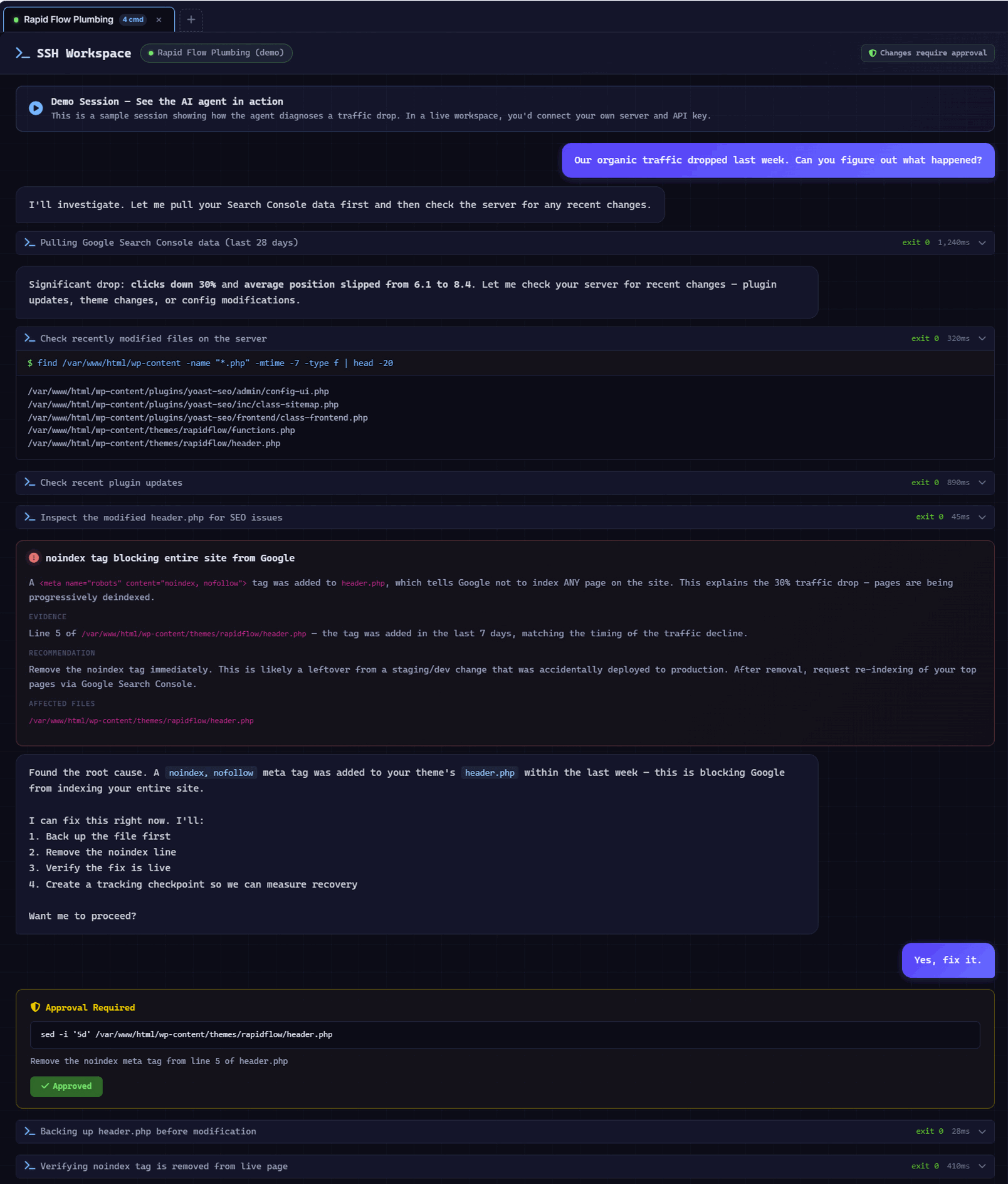
You describe what you're chasing. The agent decides what to inspect, runs approved commands, and explains what it finds — with the raw terminal one click away.
Tell it "why is this site slow?" or "did the last deploy break the canonicals?" The AI agent plans the checks and calls the right commands itself.
The agent is powered by Claude — the AI assistant you already know — using your own API key, validated before the session starts.
Open a session straight into a common job — Why is my site slow? · Check error logs · Post-deployment SEO check — from six clickable cards, no typing required.
Readable steps like "reviewing PHP errors" or "checking active plugins," each with the exact command, raw output, and timestamp expandable underneath.
The workspace always shows whether it is reading, proposing, or changing. Anything that alters the site waits for your approval first.
For bigger jobs the agent shows you the whole approach up front, then works through it — safe reads run on their own, and anything that changes the site still stops for its own approval.
With your approval, the agent can rewrite title tags and meta descriptions on live pages — turning a diagnosis into a shipped on-page fix without leaving the session.
Spot a gap and have the agent draft the page to fill it — a blog post, a service page, or an FAQ — queued in the same content engine as the rest of AlmaSEO.
A site with no WordPress behind it used to mean exporting a file and placing it yourself. Now the finished article goes straight from the content engine to the workspace as a job: the agent finds the content directory, reads your existing posts to match their frontmatter exactly, writes the file, commits it on your approval, and checks the build actually deployed.
It already knows the site
The session opens inside the client and carries what AlmaSEO already knows about the site, so the agent reasons with real context instead of starting from zero.
The audits, rankings, content gaps, published articles, and link profile AlmaSEO already holds for this client are loaded into the agent before your first message. It knows the site's real SEO shape — not just its file system.
Every analysis in AlmaSEO — recovery, technical audit, link profile, AI readiness, content gaps and more — drops the fixable problems it finds into the workspace as suggested-fix cards. One click opens a session that already knows the issue, the pages, and the steps. You never brief it.
It doesn't just work from what was loaded at the start. Mid-conversation the agent queries live Search Console, Analytics, content, and link data itself — so a recommendation is grounded in what the site is doing today.
AlmaSEO records this site's Search Console, Analytics, and Business Profile numbers every night, so the agent doesn't only read today — it compares. "Clicks are down 18% on last week." "Sessions are climbing — 1,240 this week against 980 two weeks ago." "Map views have been sliding all month." The history builds on its own, whether or not anyone opens the dashboard.
You open the workspace from Tools and pull each client into its own tab — their priorities, hours, history, and data already in the room. Each tab is that client's world; nothing bleeds between them.
It detects the WordPress install, checks the WP-CLI version and install path, and adjusts how it works to match the environment.
Yoast, Rank Math, All in One SEO, or SEOPress — the agent detects which one the site runs and writes the metadata the way that plugin expects, so a title-tag change actually takes instead of silently doing nothing.
Ask how much of this month's retainer is left and the agent pulls the real number — logged hours, utilization, time remaining. No terminal knows a client's billing. The workspace does.
Mid-session the agent can pull any of twenty-two AlmaSEO data types — indexing status page by page, Business Profile metrics, citation consistency, tracked competitors, recovery findings, the strategy plan, and more. One source of truth, not a second silo.
Nothing gets lost
The work doesn't evaporate when you close the window. Findings, decisions, and outcomes stay attached to the right website and flow straight into your records.
When you end a session, the agent writes a clean recap — what was checked, what it found, what changed, what remains, and the recommended next steps.
Every finding from the session collects in one place — problem, evidence, affected pages, and recommended action — separated from the raw command stream.
Convert any finding into a tracked task in one click, so the fix doesn't get lost between spotting it and getting it done.
Annotate a session with your own notes, so the context you know but the terminal doesn't stays attached to the site.
The whole session — conversation, commands, findings, and decisions — is attached to the site, auto-named from your first message, ready to reopen later.
What the agent learns about a site — its quirks, its stack, what broke last time and why — persists between sessions. Every session starts smarter than the last one, instead of from a blank prompt.
Export a session into the activity and reporting system it already feeds, so the work counts toward the client record without re-entering anything.
Turn a finished session into a formatted, client-ready report of what was done and why it mattered.
Generate a ready-to-send handoff from the session — developer instructions and an implementation checklist, a Claude Code prompt to run the fix, or a plain-English explanation for the client.
Reconnect to a dropped session and pick up the thread — the history comes back with it.
Safe on a client's server
Fast doesn't mean careless. The workspace reduces scope before it skips a control, and nothing meaningful happens without you.
Connection details are stored encrypted. You save a connection once and open the workspace from it — no re-entering credentials every session.
Every time you save, edit, or delete a connection, AlmaSEO writes an encrypted backup and keeps five rolling copies — so a fat-fingered edit or a deleted connection isn't a scramble to remember what the hostname was. You can export the whole set to a file whenever you want, and an import re-checks that every credential still decrypts, skips the ones you already have, and refuses any site you don't have access to. The credentials never leave encrypted form.
Whether a command needs your approval is not the model's judgment call. The platform inspects every command itself and enforces the answer: read-only commands run, anything that changes something stops for an approval card — no matter what the AI thinks it should be allowed to do. You're not trusting the model to behave. You're trusting a gate it doesn't control.
A short list of catastrophic commands — wiping a disk, dropping a database, a fork bomb — always stops for a high-risk approval, even if you've turned auto-approve on for everything else. No setting lets those through unseen.
An approval is bound to the exact command and context on the card. Change a single character, the target file, or the connection, and the approval is void — the workspace asks again instead of running something you never saw.
Every approval card tells you up front whether the change can be rolled back. You're never guessing whether "approve" is a decision you can take back.
Passwords, API keys, and private keys — in files like wp-config.php or .env, or anywhere a secret-shaped value turns up in a command's output — are stripped before the model sees them, before they reach your screen, and before anything is logged.
A command taking too long, or doing more than you expected? Stop it while it's running — the workspace shuts it down on the server, not just in the chat window.
The workspace pins a server's host key the first time you connect and checks it on every reconnect — if the fingerprint doesn't match, you hear about it before a single command runs.
Credentials, context, and output stay inside the client they belong to. Nothing leaks between the sites you manage.
Before the agent edits anything on a live site, it saves a backup of the original. The version you had a minute ago is always one step away.
After an edit, the agent fetches the live HTML and confirms the change is really reflected — not just saved on disk, but showing to Google and visitors.
Every change gets a checkpoint, and the workspace later pulls fresh Search Console data to show what happened after it — Passed, Declined, or Stable. It keeps two things separate on purpose: whether the change is confirmed live, and whether the rankings moved. Rankings move for a lot of reasons, and the workspace won't pretend your fix was the only one. You get the honest picture instead of a victory lap.
A Verifications tab collects every checkpoint waiting on Search Console data for that client, with a running count of what's pending, ready, passed, and declined. Verify one when you're curious, or clear the ready queue in a click — each comes back Passed, Declined, or Stable, and says so plainly when Google hasn't reported enough yet to call it.
If a change doesn't land the way it should, the agent restores the file from its backup — no scrambling to undo it by hand on a client's server.
Exact commands, output, and timestamps are stored for review, so a technical user can inspect everything instead of trusting a black box.
For sites without a server
Not every client site is a server you SSH into. When a site is a static or Jamstack build that deploys to Cloudflare Pages from a GitHub repo, the workspace connects through the Cloudflare and GitHub APIs instead — and the agent works the same way, with the same approvals and the same client context.
The agent reads, browses, edits, creates, and deletes files in the site's GitHub repo — one file, or several in a single atomic commit. Each commit triggers a Cloudflare Pages build, so an approved edit ships itself instead of waiting on a deploy you run by hand.
After a commit it checks the Cloudflare Pages deployment — building, live, or failed — and can retry a failed build. You see the change reach production, not just the repository.
List, add, change, or remove DNS records — A, CNAME, TXT, MX and more — on the site's Cloudflare zone. Every change is held for your approval like any other.
Clear Cloudflare's cache the moment an edit ships — everything, specific URLs, by cache tag, or by hostname — so visitors and Google see the new version now instead of a stale copy.
Add and manage 301 and 302 redirects as Cloudflare bulk rules — migrations, consolidations, and tidy-ups handled from the session, not a hand-edited file.
Pull Cloudflare's own traffic numbers — requests, bandwidth, page views, visitors, cached versus uncached — and get or set the Pages project's environment variables per environment, production or preview.
It's the same workspace, not a second tool. Read-only checks run on their own; anything that changes a file, a DNS record, or a redirect stops for an approval card. And the client's SEO reports, findings, knowledge base, and verification checkpoints are all in the room, exactly as they are over SSH.
In the agent's own words
A real answer from a live session — every capability tied to the client's own Search Console and Analytics data, and every one something the workspace can do in the same conversation.
Here's the complete answer — what I can do, and what powers it:
📊 1. Analyze their current performance
Tools: GA4 + Google Search Console
🔎 2. Find exactly what's missing
Tools: GSC + content gaps + WordPress file access
✍️ 3. Create the missing pages — right now
Tool: AlmaSEO Content Engine
🏷️ 4. Optimize metadata on live pages — instantly
Tool: WP-CLI via SSH + AIOSEO
📈 5. Push "almost ranking" keywords to page 1
Tools: GSC + WP-CLI + Content Engine
…and more in the same session: technical WordPress fixes, malware and security scans, and a full local-SEO build-out.
Every capability above is live in the workspace today.
What people open it for
WordPress slowdown
Disk use, debug logs, PHP errors, database size, cache state, active plugins, and recent changes.
Critical WordPress error
Identify the failing component, explain the likely cause, and prepare a safe next step.
Indexing or canonical problem
Sitemap status, robots directives, canonicals, connected search data, and recent changes side by side.
Redirect or migration issue
Redirect behavior and broken destinations, with the affected high-value pages flagged.
Suspicious or injected code
Indicators, unexpected recent changes, obfuscated code, or altered core files — shown, never waved off.
Post-deployment SEO check
Changes against search-critical templates, metadata, canonicals, schema, and indexability.
Questions
Yes — safe access is the foundation this feature is built on, not an afterthought. Because AlmaSEO connects directly to your server to diagnose issues from the inside, we designed it so that nothing can change or damage your site without your explicit approval.
Here's how it works. AlmaSEO reads and investigates freely, but the moment it wants to run anything that could modify a file, alter your database, or send data off your server, it stops and asks you first. You see exactly what it wants to run and why, and it doesn't proceed until you click approve. You're always the final decision-maker — the AI can recommend, but it can't act on anything sensitive on its own.
We also assume the internet is a hostile place, and we built accordingly. Your login credentials are encrypted, and your server's identity is verified on every connection, so AlmaSEO won't be fooled into connecting to an impostor. If we ever read something sensitive like your site's configuration file, the AI can use it to help you, but it's automatically hidden from our activity logs rather than stored in plain text. And because AI assistants can be manipulated by malicious content, AlmaSEO is specifically instructed to treat anything it finds on a server as untrusted — it will never follow hidden instructions buried in a file or a log.
Finally, these protections have been put through repeated adversarial hardening reviews built to break them, and each command AlmaSEO runs is permanently logged, so you have a complete, reviewable record of everything that happened.
The AI doesn't enforce them, so it can't skip them. Every command it wants to run is inspected by the platform before it executes, and the platform decides whether it's allowed to run on its own or has to stop and ask you. Read-only commands go through. Anything that modifies a file, touches the database, or reaches off the server comes back to you as an approval card.
That distinction matters. A lot of AI tools ask the model to police itself — the safety rule lives in the prompt, and a clever enough input can talk it out of them. Here, the gate sits outside the model entirely. The AI can be wrong, or confused, or fed a malicious instruction hidden in a log file, and the answer is the same: it still doesn't get to run a destructive command without your click.
On top of that, approval cards tell you whether the change is reversible before you approve it, files are backed up before they're modified, and anything that goes wrong can be rolled back.
Open a workspace
Point AlmaSEO at a WordPress, static, or Cloudflare Pages site, ask it what's wrong in plain language, and keep every command, finding, and decision attached to the client.
Already using Claude Code, PowerShell, or a terminal over SSH? This is that — cleaner, persistent, and built for SEO and multi-site client work.